Add a person to a photo
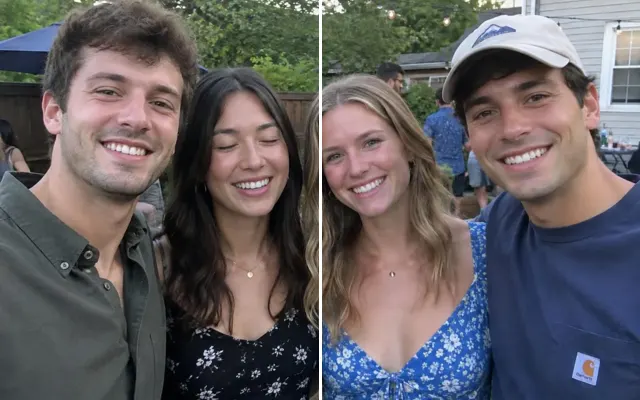
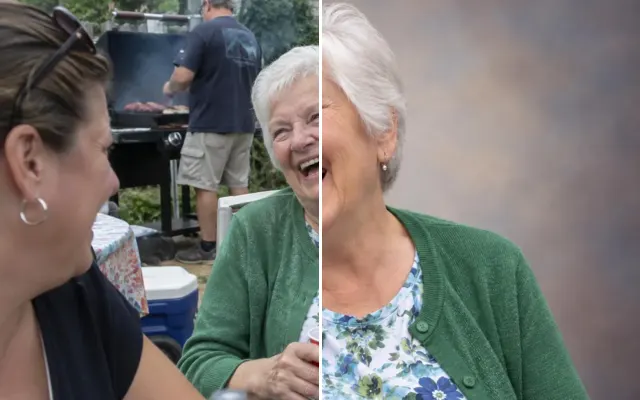
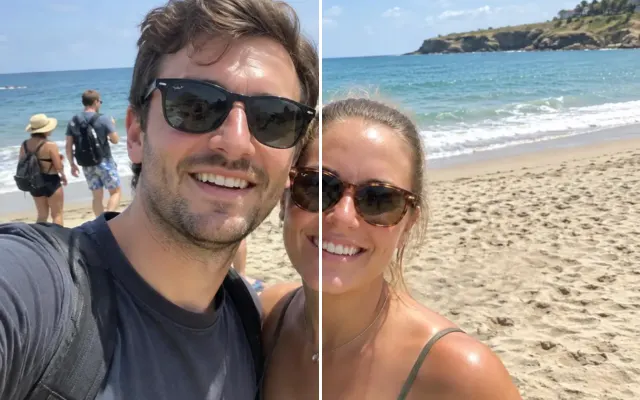
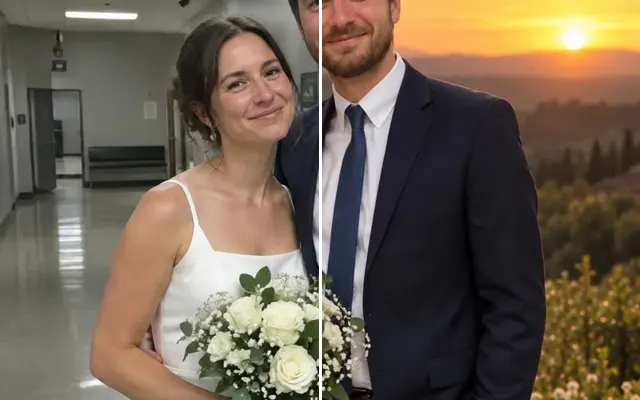
Bring everyone together: add a late grandparent to a wedding photo, the friend who took the picture, or yourself into the group shot. Lighting, scale and grain are matched so they look like they were there.
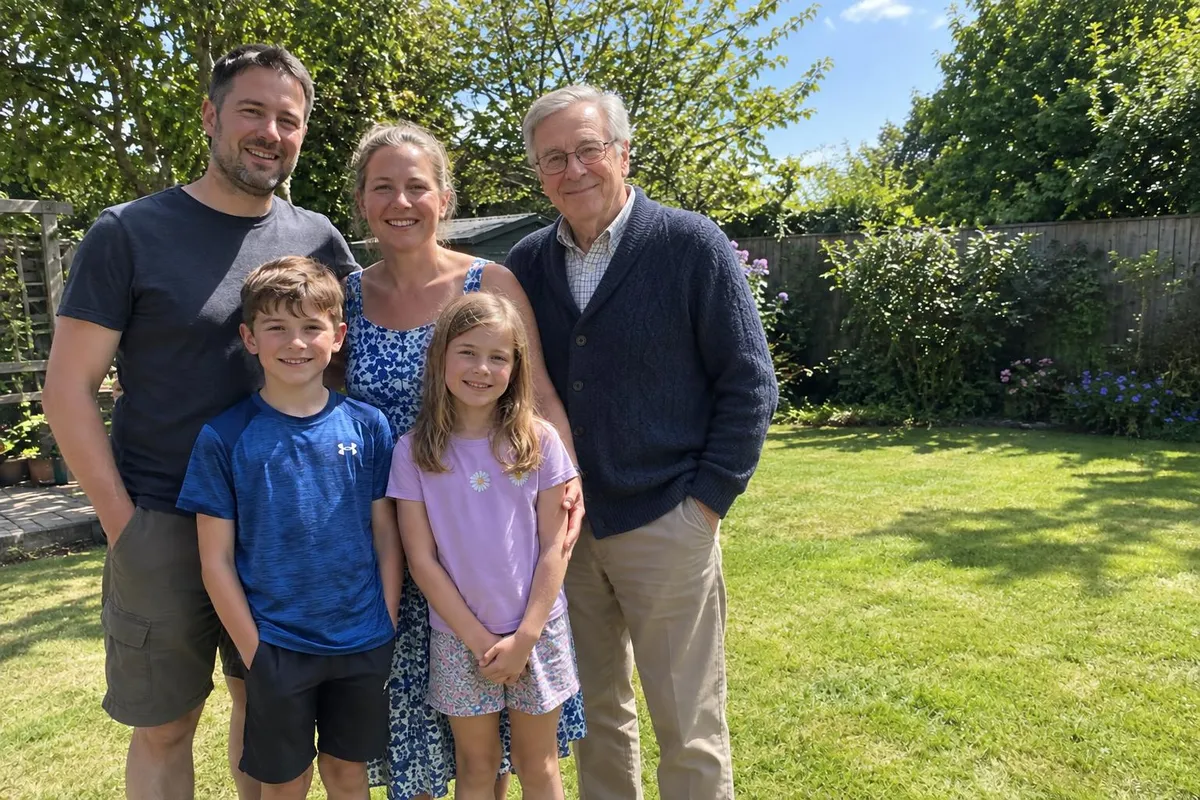
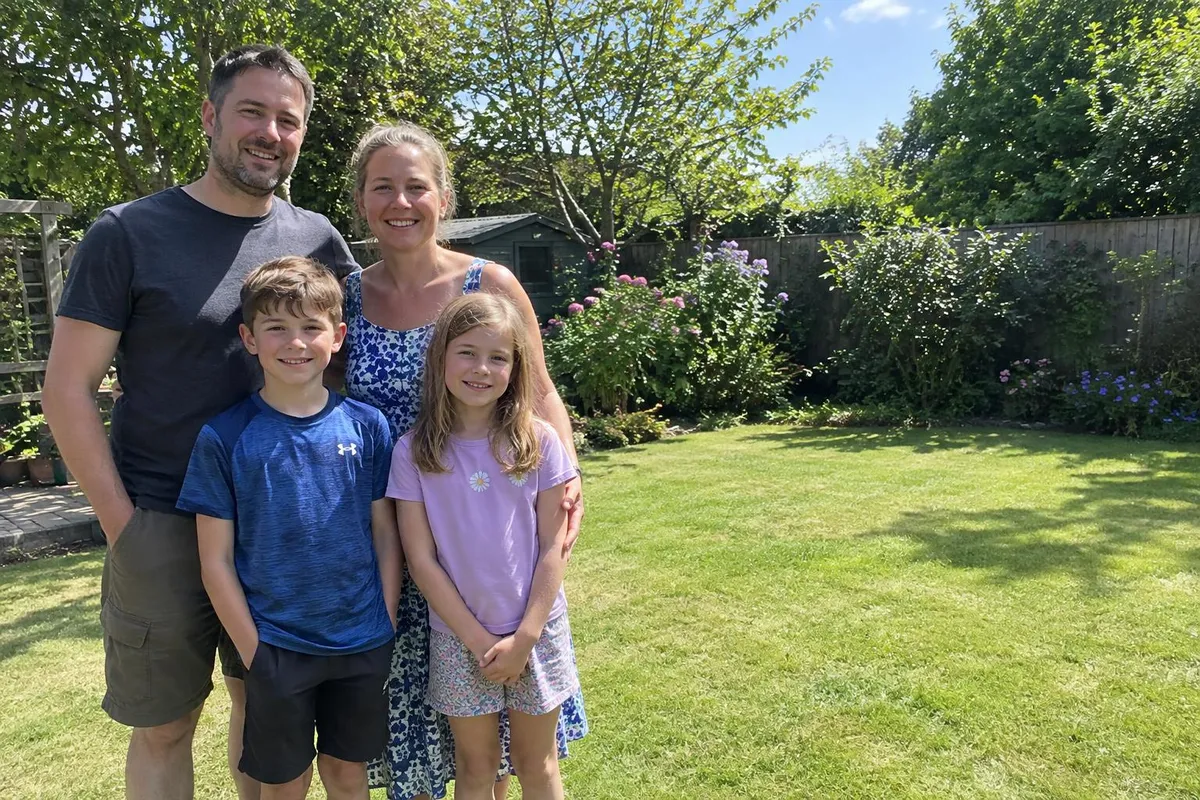 BeforeAfter
Your photo stays in this browser tab while you switch between tools.
How it works
- 1
Upload your photo
Drop in a JPG, PNG or WebP, or paste a screenshot. Nothing to install.
- 2
Add their photo
Upload a clear photo of the person and, optionally, paint where they should go.
- 3
Compare and download
Drag the slider to compare with the original, then download. Not perfect? Run it again or undo.
Great for
- Including a loved one who passed away in a family photo
- Adding the photographer to the group
- Uniting siblings who live far apart
Tips for the best result
- Choose a reference with similar lighting and camera angle.
- A second reference photo noticeably improves likeness.
- Describe pose and position in plain words.
Questions
How do I add someone to a photo?
Upload the group photo, add a clear photo of the person you want to include, and optionally paint where they should stand. A second photo of them improves the likeness.
Will the people already in the photo change?
They shouldn't. If you paint the spot for the new person, everything outside it is restored from your original.
Can I add a pet instead?
Yes — upload a photo of the pet as the reference and describe where it should be.