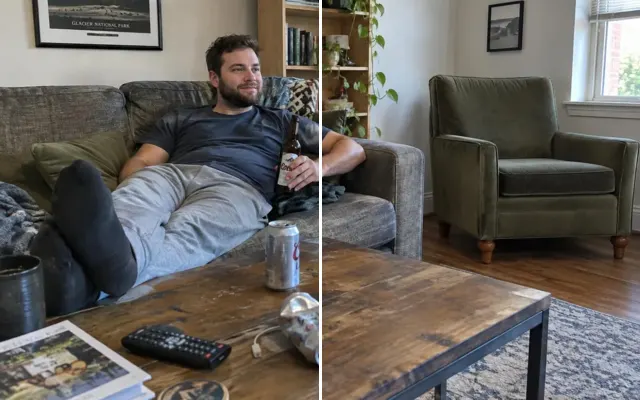
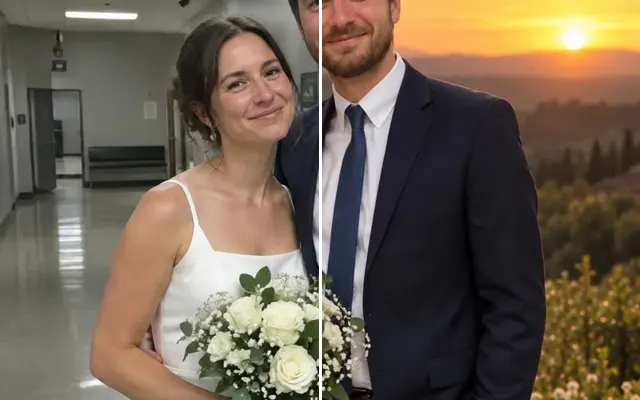
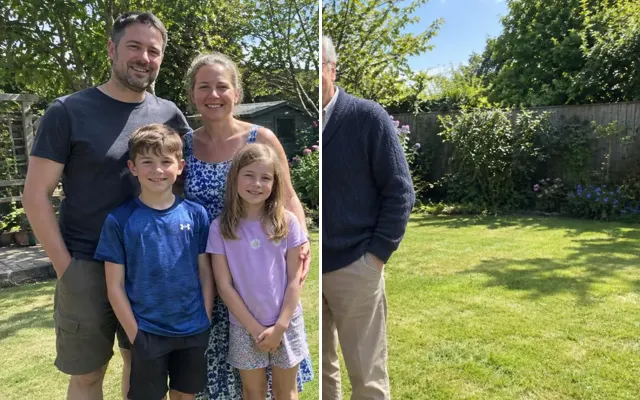
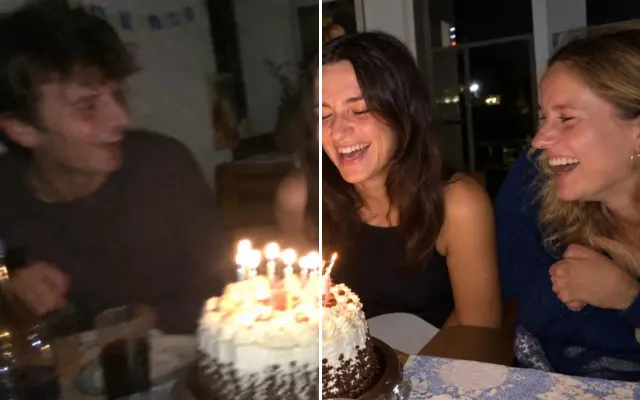
Remove people from photos
Erase photobombers, tourists in the background or an ex from a photo you love. Paint over who should go — or just remove everyone in the background — and the scene is rebuilt naturally behind them.
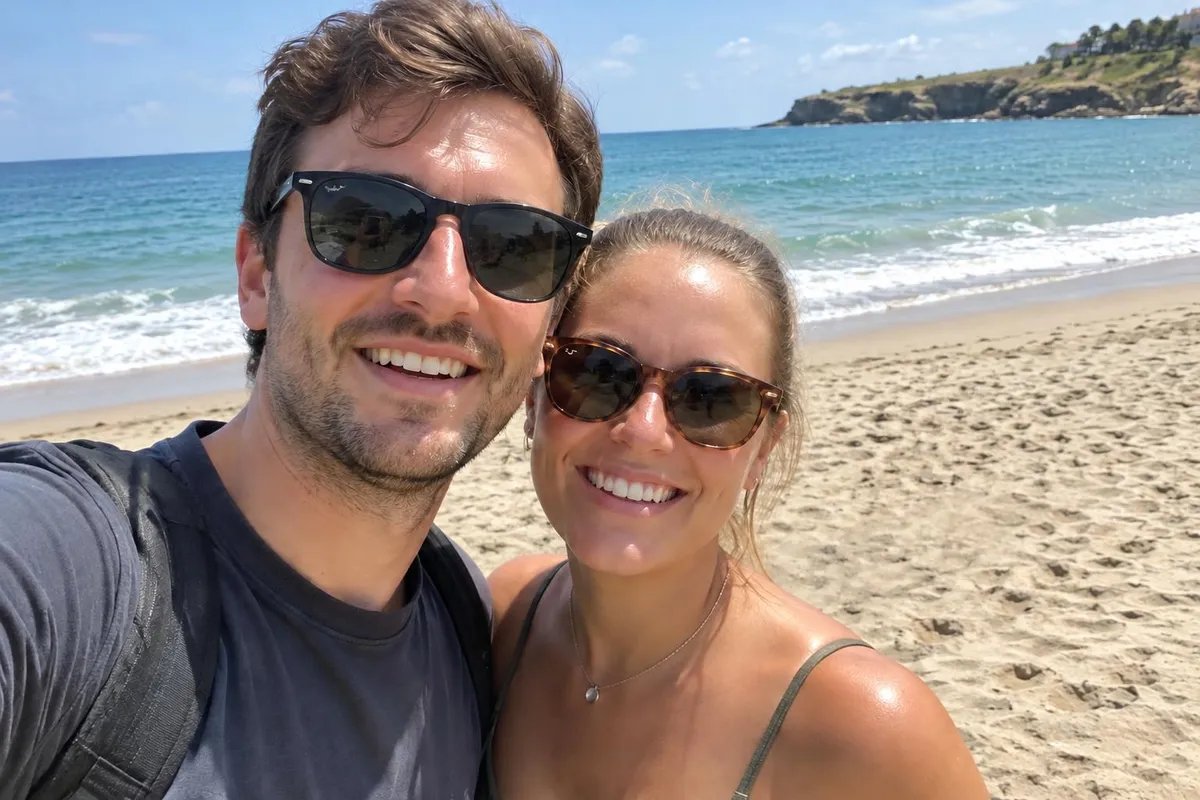
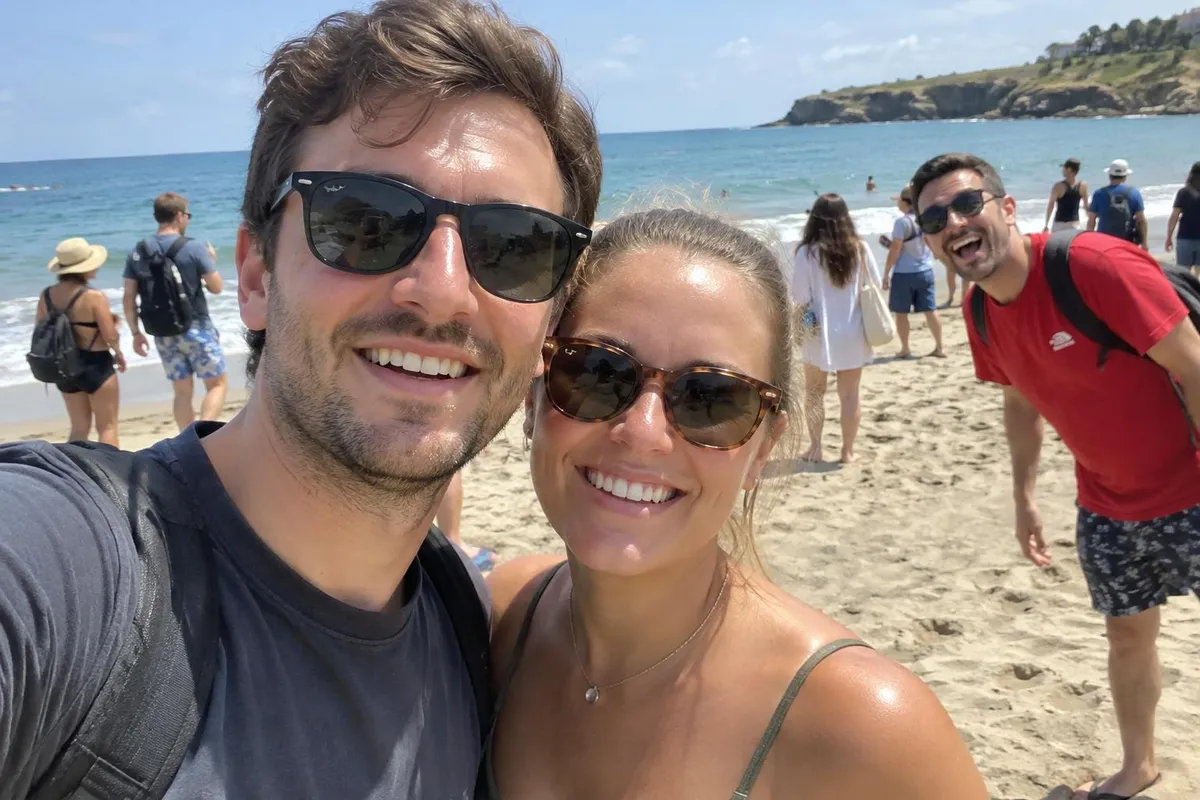 BeforeAfter
Your photo stays in this browser tab while you switch between tools.
How it works
- 1
Upload your photo
Drop in a JPG, PNG or WebP, or paste a screenshot. Nothing to install.
- 2
Mark who should go
Paint over them, describe them, or choose ‘everyone in the background’.
- 3
Compare and download
Drag the slider to compare with the original, then download. Not perfect? Run it again or undo.
Great for
- Travel photos full of strangers
- Wedding and graduation shots with a photobomber
- Keeping a great photo of yourself after a breakup
- Cleaning up a group shot before printing
Tips for the best result
- Include shadows and reflections of the person in your brush stroke.
- Paint a little wider than the person — the edges blend better.
- For people touching your subject, also describe what should be there instead (e.g. ‘her arm resting at her side’).
Questions
How do I remove a person from a photo?
Upload the photo, paint over the person (including their shadow) and press Remove people. To clear a busy scene, choose ‘Everyone in the background’ instead of painting.
Will the people I keep look different?
No. When you paint an area, we put the original pixels back everywhere outside it, so faces you didn't paint can't change.
Can it remove someone who's hugging me?
Usually, yes. Paint the person and their arms, and describe what your shoulder or arm should look like. Expect to try a couple of times for tricky overlaps.
Is it free?
Previews are free: 3 a day without an account, 10 a day with a free account. Downloading the full-quality image without the watermark costs one credit.