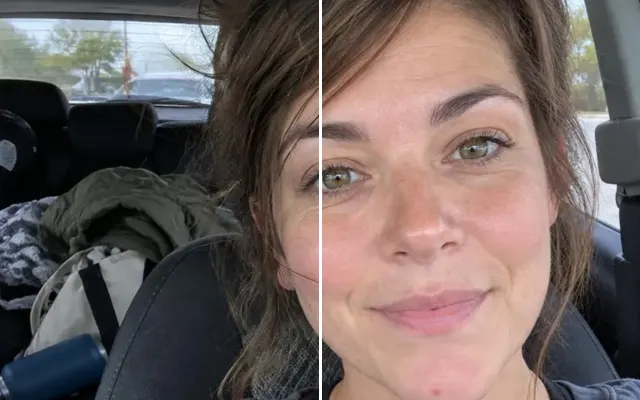
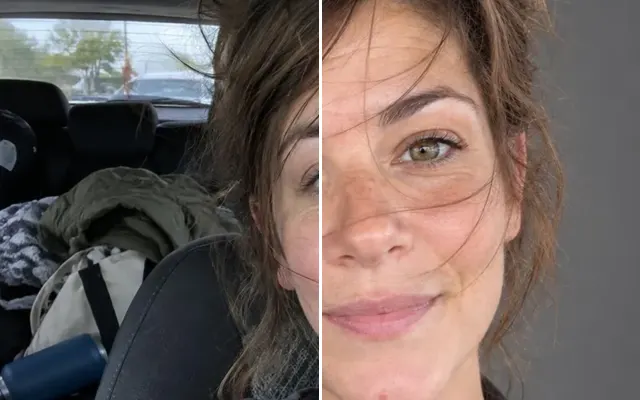
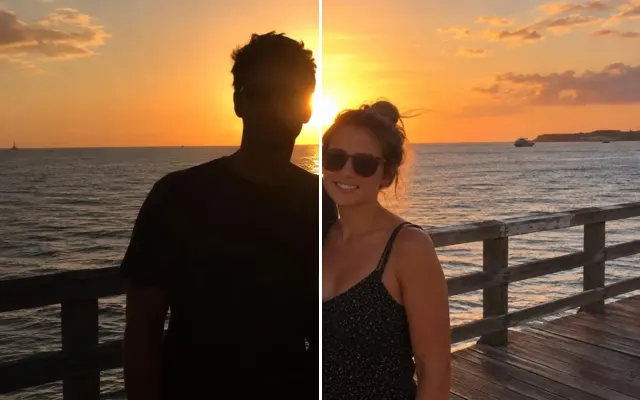
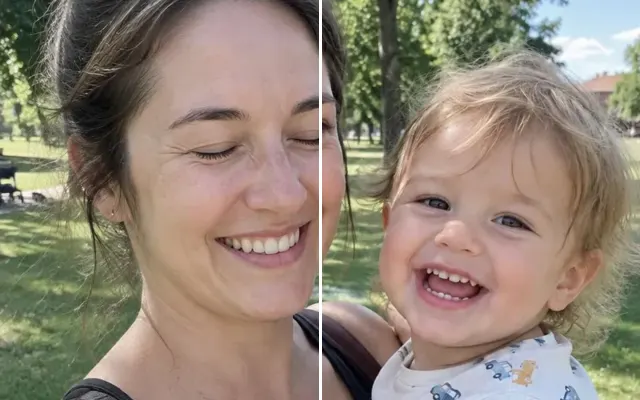
Natural face retouching
Clear blemishes, brighten or straighten teeth, remove glasses or the glare on them, and tidy stray marks — subtly, so it still looks like you. No plastic ‘AI skin’.

 BeforeAfter
Your photo stays in this browser tab while you switch between tools.
How it works
- 1
Upload your photo
Drop in a JPG, PNG or WebP, or paste a screenshot. Nothing to install.
- 2
Pick the fix
Choose blemishes, teeth, glare or glasses — or describe it.
- 3
Compare and download
Drag the slider to compare with the original, then download. Not perfect? Run it again or undo.
Great for
- Profile pictures
- Wedding portraits
- Restoring a loved one's smile from an older photo
Tips for the best result
- ‘Subtle’ keeps skin texture — usually the most flattering.
- Add an older photo as reference to restore teeth or features.
Questions
How do I retouch a face without it looking fake?
Choose the fix (blemishes, teeth, glare or glasses) and keep strength on ‘Subtle’. Only what you pick is changed, and pores and skin texture are kept.
Will my skin look fake?
The tool keeps pores and texture and only fixes what you choose. ‘Subtle’ is the default for that reason.